
MTA Server Hosting
With MTA server hosting you launch your own Multi Theft Auto: San Andreas server in minutes. Xeon server processors, NVMe SSD storage, a ready admin account and a Web Panel that manages server name, game mode and password from a single screen.

- Automatic
- Official MTA 1.6 setup
- 2-6 GB
- RAM options
- Ready Admin
- Admin account and ACL
- L3/4
- DDoS protection
Smooth Roleplay, Smooth Racing.
The MTA server itself is lightweight; on roleplay servers the real load comes from Lua resources and database work. Our servers run on enterprise Xeon processors with NVMe SSD storage, and each plan has dedicated core, RAM and disk limits so resources and database operations load fast.
Automatic Setup
Your server is created right after payment; the MTA server files and default resources are downloaded from the official MTA servers.
Easy Control Panel
Change server name, player slots, password, game mode and startup resources from the Startup screen.
Hardware Protection
Professional DDoS protection tuned for game traffic is free on every plan.
What Is MTA Server Hosting?
Multi Theft Auto: San Andreas (MTA:SA) is an open source mod that adds multiplayer to GTA San Andreas. Players connect from their own copy of the game to an MTA:SA server to play roleplay, racing, freeroam or deathmatch.
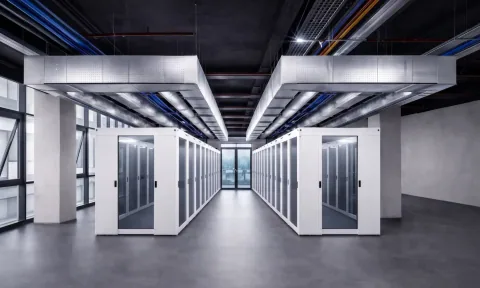
MTA server hosting means running that server in a data center around the clock instead of keeping it open on your own computer. Port forwarding, a changing IP address and leaving a PC on all day are no longer your problem; your server stays online at the same address on a DDoS protected network.
MTA Server Plans
Transparent pricing, serious power. Professional plans with automatic setup.
MTA Starter
Ideal for race, freeroam and deathmatch servers.
- 2 Cores (Xeon Processor)
- 2 GB RAM
- 15 GB NVMe SSD Disk
- DDoS Protection (Free)
- Ready Admin Account
- Easy Management via Web Panel
MTA Professional
For roleplay and community servers with many resources.
- 3 Cores (Xeon Processor)
- 4 GB RAM
- 30 GB NVMe SSD Disk
- DDoS Protection (Free)
- Ready Admin Account
- Easy Management via Web Panel
MTA Extreme
For busy roleplay servers, large maps and mods.
- 4 Cores (Xeon Processor)
- 6 GB RAM
- 45 GB NVMe SSD Disk
- DDoS Protection (Free)
- Ready Admin Account
- Easy Management via Web Panel
Server Sizing Guide
How many players and how many resources? Pick your plan by the use you have in mind.
Choose the Right PlanRace and Freeroam · Starter
Official game modes, race maps and servers with friends run comfortably on 2 GB RAM with a small number of resources.
Roleplay · Professional
Database driven roleplay game modes, vehicle and housing systems and custom interfaces call for 4 GB RAM and 3 cores.
Busy Server · Extreme
Hundreds of players, many resources, custom maps and model files need 6 GB RAM, 4 cores and 45 GB disk.
How to Set Up an MTA Server
MTA server hosting is the easiest way to run a roleplay, race or freeroam community with your own rules. On AnkSOFT the MTA server setup is fully automatic: once your payment is confirmed your server is created, the official MTA:SA 1.6 server files and the default resource pack are installed and the server starts on its own.
On the panel's Startup tab you change the server name, player slots, server password, game mode and startup resources. An admin account is created for you during setup with Admin rights; log in in game and press P to open the admin panel.

Every plan runs with its own core and RAM limits. Enterprise Xeon processors give the MTA server and its Lua resources stable, steady performance.
The server itself takes a few hundred MB. The NVMe SSD space in each plan leaves room for custom vehicle, map and model files, databases and logs.
Popular servers attract attacks; Layer 3/4 DDoS protection tuned for game traffic is standard on every plan.
Your server appears in the in-game server browser automatically. The game port, the resource download port and the server browser port are set up during installation, so you never deal with ports or firewalls.
Our servers run in our data center in Turkey on a high bandwidth network, with low latency for players connecting from Turkey. With automatic updates on, your server fetches the latest release from the official MTA server on every start; mtaserver.conf, acl.xml, your resources and databases are kept.
Most roleplay game modes use MySQL. MTA's built in SQLite database is ready on your server, and the libraries needed to connect to an external MySQL database with dbConnect are preinstalled.
Resource and Game Mode Management
In MTA everything is a resource: game modes, maps, interfaces and admin tools are folders of Lua scripts with a meta.xml file. Your server comes with the official default resources such as the admin panel, scoreboard, freeroam, race, deathmatch and the map manager.
Upload your own resources to the mods/deathmatch/resources folder from the panel's Files tab or over SFTP. To start a resource automatically, type its name into the Startup Resources field on the Startup tab, separated by commas; no need to edit mtaserver.conf by hand.
Upload a resource in 3 steps
Upload the folder
Upload the resource folder or zip file into mods/deathmatch/resources on the Files tab and extract it.
Add it to startup
Type the resource folder name into the Startup Resources field on the Startup tab.
Restart
Restart the server, or start the resource right away from the MTA Management screen.
Some of the official resources included
- admin: in game admin panel (P key), kick, ban and resource control.
- webadmin: server and resource management from the browser.
- race: race game mode with ready race maps.
- deathmatch and tdm: free for all and team combat modes.
- mapmanager and votemanager: map rotation and voting.
- scoreboard and joinquit: scoreboard and join and quit messages.
MTA guides (Turkish)
- MTA server setup and first settings: first start, server name, player slots and connecting.
- MTA admin rights and ACL: admin login, aclrequest, authserial and console commands.
- MTA resource upload and game modes: meta.xml, refresh and start, common errors.
MTA Game Modes
Pick an official game mode with a single panel setting, or run your own roleplay game mode on the same plan.
-
Roleplay
Upload your own or a purchased roleplay game mode and set Game Mode to ozel. The Professional plan is recommended for database driven modes.
-
Race
Ready race maps, map voting and rankings. Light on resources, the Starter plan is enough.
-
Freeroam (play)
Free roaming with vehicle and weapon menus. The default game mode on first start.
-
Deathmatch and TDM
Free for all and team combat. As players grow, CPU power becomes decisive.
-
CTF and Assault
Capture the flag and objective attack modes, great for team events and tournaments.
-
Custom Resources
Community resources, vehicle and map packs. A higher plan is recommended for servers with many resources.
Settings Managed from the Panel
Startup tab settings are written safely to mtaserver.conf and acl.xml on every start. Change them and restart the server.
| Panel setting | What it does | Default |
|---|---|---|
| Server Name | Name shown in the in-game server browser. | AnkSOFT MTA Sunucusu |
| Max Players | Number of players who can connect at the same time. | 32 |
| Server Password | If set, players enter it when connecting. | Empty (public) |
| Admin Account | Username and password; the account is created on start and given Admin rights. | admin, random password |
| Game Mode | play, race, deathmatch, tdm, ctf, assault and other official modes, or ozel. | play |
| Startup Resources | Resources started automatically with the server, separated by commas. | Empty |
| Show in Server Browser | Listing in the in-game server browser. | On |
| Automatic Updates | Updates from the official MTA server on every start. | On |
The admin password you set in the panel is applied to the account on every start; change it on the Startup tab rather than in game.
MTA Management screen: no commands needed
The MTA Yönetimi (MTA Management) button at the bottom right of your server page brings everyday tasks onto one screen, so you do not need to memorise console commands.
- Resources: lists every resource with its state; start, stop or restart in one click and mark which ones start with the server.
- Game mode: switch between play, race, deathmatch and the other official modes in one click.
- Players: online player list, kick, timed or permanent serial bans and unbanning.
- Staff: approve or deny resource permission requests (aclrequest) and add Admin or Moderator accounts; passwords are never written to the console log.
- Console: live output, sending commands and in-game announcements.
Actions on this screen follow panel permissions: your subusers can only do what you have allowed them to.
Tips for an MTA Roleplay Server
When you open an MTA roleplay server, the usual trouble spots are plan choice, the database and admin rights. Check these before you go live:
- Plan: start database driven roleplay modes on the Professional plan and move to a higher plan as your player count grows.
- Database: the built in SQLite is enough for small servers; for MySQL game modes put the connection details in the game mode's settings file.
- Rights: add only trusted accounts to the Admin group; approve admin logins from a new computer with the authserial command.
- Preparation: set a Server Password or turn off the server browser listing until your server is ready.
- Debugging: if a resource does not start, read the SCRIPT ERROR line in the console; the file name and line number point to the problem.
- Backups: before big changes, download your resources folder and database files to your computer over SFTP.
Which ports does an MTA server use?
| Port | Protocol | Purpose |
|---|---|---|
| Game port | UDP | Player connections (22003 by default on a home setup). |
| HTTP port | TCP | Resource downloads for players; on our servers it uses the same number as the game port. |
| Game port + 123 | UDP | Server browser (ASE) queries; 22126 by default on a home setup. |
All three ports are allocated to your server automatically during setup; no port forwarding or firewall work is needed.
Related Game Servers
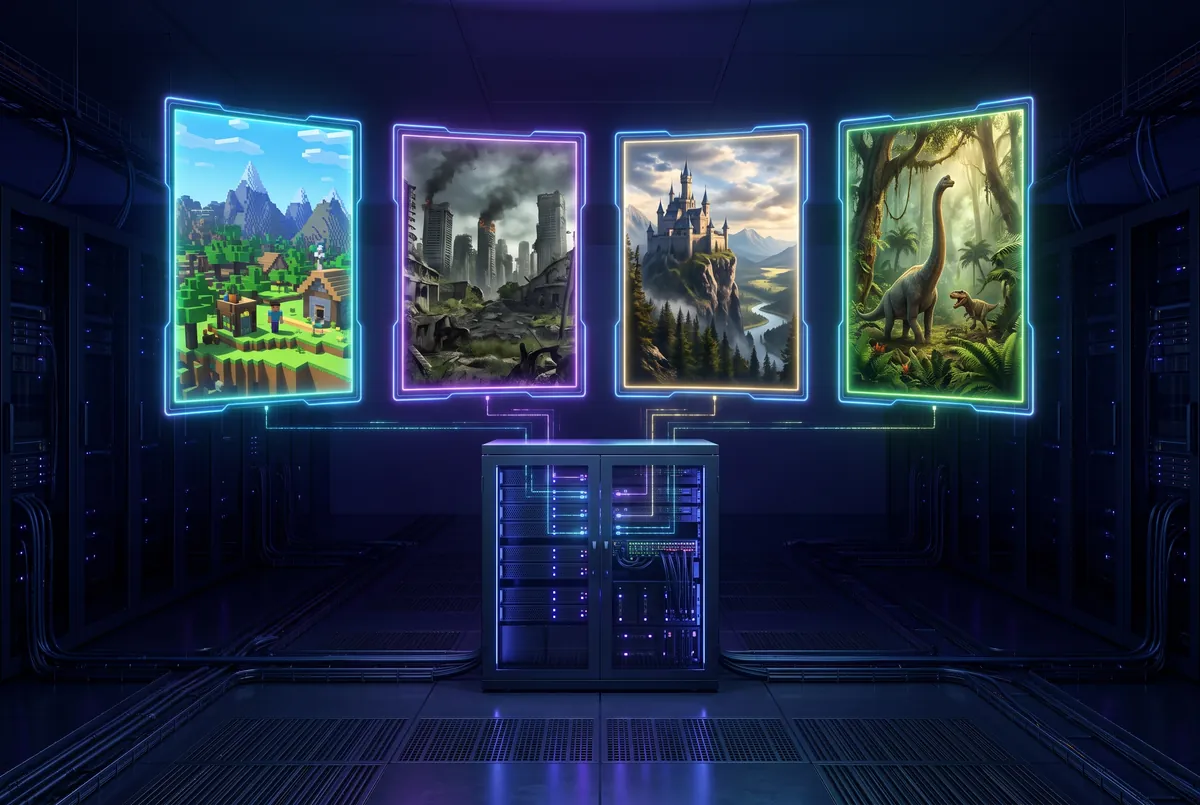
Looking for a different kind of server? See our Game Server Hosting page for every game, or check our SA-MP Server Hosting for the other GTA San Andreas multiplayer platform, our FiveM Server Hosting plans for GTA V based roleplay, or Minecraft Server Hosting and CS2 Server Hosting for community servers. Advanced users who want full Root access can choose Buy VDS and get unlimited control on their own operating system.

Frequently Asked Questions
How soon will my MTA server be ready?
Once your payment is confirmed your server is created automatically; the official MTA:SA 1.6 server files and default resources are downloaded from the official MTA servers. Setup usually completes in a few minutes, the server starts on its own and your panel details are sent by email.
How do I log in to my admin account?
An admin account is created during setup and added to the Admin group. The username and password are shown on the panel's Startup tab. In game type /login username password in chat, then press P to open the admin panel. To change the password, update the field on the Startup tab and restart the server.
Will my server appear in the in-game server browser?
Yes. The extra port the server browser needs is allocated automatically during setup, and your server shows up in the MTA server list a few minutes after it starts. If you do not want it listed, set Show in Server Browser to 0 on the Startup tab; players can still connect with the IP address and port.
Can I install my own roleplay game mode?
Yes. Upload your game mode's resource folders to mods/deathmatch/resources from the Files tab, set Game Mode to ozel on the Startup tab and type the resource names into the Startup Resources field separated by commas. The resources start in order when you restart the server.
Can I use a MySQL database?
MTA's built in SQLite database is ready on every server. Game modes that use MySQL can connect to an external MySQL server with dbConnect; the required libraries come preinstalled. Just put the connection details into your game mode's settings file.
How do I change the game mode?
Choose play, race, deathmatch, tdm, ctf, ctv, assault, stealth, hay, fallout or briefcaserace in the Game Mode setting on the Startup tab and restart the server. When logged in as admin you can also switch modes temporarily in game with the changemode command.
How much RAM and how many cores do I need?
Official game modes, race and freeroam servers run well on 2 GB RAM and 2 cores (Starter). Database driven roleplay servers call for 4 GB and 3 cores (Professional), busy servers with many resources for 6 GB and 4 cores (Extreme).
Will my server stay up to date?
With Automatic Updates on, your server checks the official MTA Linux package on every start and updates only the server files when a new release is out. mtaserver.conf, acl.xml, your resources and databases do not change.
Which ports does an MTA server use?
An MTA server uses a UDP game port for player connections, a TCP HTTP port for resource downloads and a UDP port 123 above the game port for the server browser. On a home setup the defaults are 22003, 22005 and 22126; on our servers all three are allocated automatically during setup.
Where do I download MTA and how do I connect to my server?
Download the MTA:SA client from the official multitheftauto.com site; it needs GTA San Andreas installed on your computer. In game, search for your server's name in the server browser or enter the IP address and port shown in the panel on the Quick Connect screen.
Can MTA be played on mobile?
No. MTA:SA runs only on PC with the PC version of GTA San Andreas; there is no official mobile version. Servers set up for mobile games are not MTA servers.
Where is my server hosted?
Our MTA servers are hosted in our data center in Turkey on nodes with Xeon processors and NVMe SSD storage.
Is there DDoS protection?
Yes. Hardware Layer 3/4 DDoS protection tuned for game traffic is free and standard on all our MTA servers.
Your MTA Server Is Ready, Your Players Are Waiting.
Launch your own Multi Theft Auto server today with Xeon processors, NVMe SSD storage, DDoS protection and a ready admin account. Our experts are one message away.